Printer Offline
Seeing a “Printer Offline” message can be frustrating, especially when you need urgent printouts. The good news is that this issue is quite common and can usually be fixed with a few simple steps.
Start by checking the printer’s power and connections. Make sure the printer is switched on and properly connected to your computer or network. If you’re using a wireless printer, verify that it’s connected to the correct Wi-Fi network and that the signal is strong. For USB-connected printers, unplug the cable and reconnect it, or try using a different USB port.
Next, restart both the printer and your computer. A quick reboot often resolves temporary communication problems between devices.
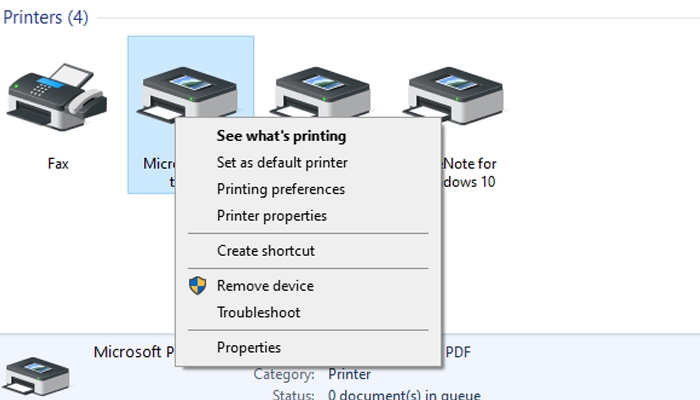
Then, open your computer’s printer settings and confirm that the correct printer is set as the default. If the printer status shows “Offline,” right-click on the printer and select Use Printer Online. Also, check the print queue and clear any pending or stuck print jobs.
If the problem continues, update or reinstall the printer drivers. Outdated or corrupted drivers can stop the printer from communicating properly with your system. Visit the manufacturer’s official website and download the latest drivers for your specific printer model.